
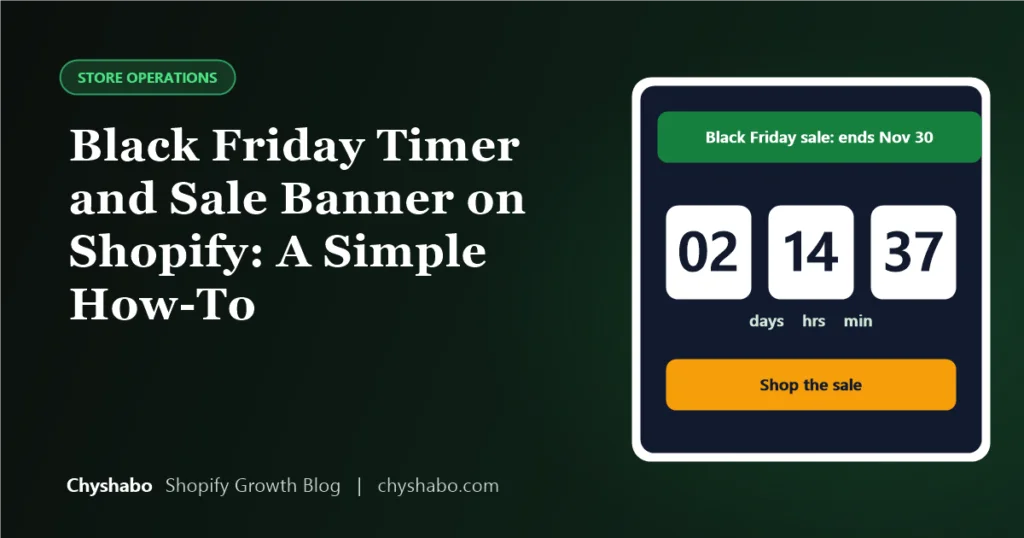
A clear sale banner at the top of your store tells every visitor there is an offer on, and a countdown can add a sense of timing. Both are easy to add, but both are easy to get wrong, from timers that show the wrong time to ones that reset for every visitor, which shoppers and regulators do not like.
This guide shows you how to set up a Black Friday announcement bar and a countdown the honest way, and what to check before you go live. It works for most Shopify themes, though menus differ between themes.
A countdown should end when your offer ends. Timers that reset on every visit, or “only 3 left” messages that are not true, mislead shoppers and can break consumer protection rules in places such as the UK, the EU, Australia and the U.S. They also damage trust. If the sale really ends at midnight on Cyber Monday, a timer is fine. If it does not, leave it out.
Part 1: the announcement bar
Most Shopify themes include an announcement bar section at the top of the page. To edit it:
- In your Shopify admin, go to Online Store, then Themes, and click Customize on your live theme (or better, on a duplicate copy while you test).
- Open the header area and find the Announcement bar section. If you do not see one, use Add section in the header group to see whether your theme offers it.
- Add your message, link and colours. Keep the text short.
- Check how it looks on a phone, then save.
What to write
- State the offer and the end date: “Black Friday sale: up to 30% off until Cyber Monday, November 30” (use your own real offer and end date).
- Link it to a sale collection, not the home page.
- Add a second message, if your theme rotates them, for your shipping cutoff. See our guide to holiday shipping cutoffs.
- Keep it readable. On a phone, long messages wrap and push your page down.
Part 2: schedule the offer itself
The banner is only a message. The discount must be set up separately, and the two must match.
- In Discounts, create your automatic discount or code.
- Use the Active dates section to set the start and end date and time. Shopify uses the time zone shown in your admin, so a discount set to start on November 27 starts at midnight in that time zone.
- Check how it combines with other discounts. Shopify lets product, order and shipping discounts combine if you allow it, so test the final price in a real cart.
- Place a test order, then check the price and the confirmation email.
Part 3: adding a countdown
Whether you can add a countdown easily depends on your theme.
- Check your theme first. Some themes include a countdown timer or a section that supports one. Look in the theme editor under the sections you can add.
- Use an app or a small piece of custom code if not. If you choose an app, pick one with a good track record, check its reviews and speed impact, and remove it after the sale. Every app adds weight to your pages.
- A theme developer can add one for you. A simple, lightweight countdown does not need a heavy app.
Rules for a trustworthy countdown
- Set it to a fixed end date and time, and make sure the time zone is clear. A global audience will see a different local time, so show the end time with the time zone, or choose a moment such as midnight in your store’s time zone.
- Make it match the discount’s actual end time exactly.
- Never reset it per visitor or per session.
- Decide what happens when it reaches zero: hide it and update the banner, so you are not showing an expired offer.
Part 4: test before you launch
- View the store on a phone and a laptop. Check that the banner is readable and does not cover content.
- Test the link in the banner.
- Add a product to the cart and check that the sale price appears correctly.
- Check page speed before and after adding a timer or app. See how to speed up your store.
- Set a reminder to remove or update the banner when the sale ends.
Common mistakes
- Announcing a sale before the discount is active, or leaving the banner up after it ends.
- Making a timer that counts to a time other than the real end.
- Adding a heavy countdown app in the last week, with no testing.
- Using several pop-ups and bars at once, which makes the page noisy on a phone.
Final thoughts
A simple banner and an honest timer, backed by a discount that really ends when you say it does, will serve you better than a flashy countdown that no one believes. Test it on a phone, keep it light and take it down when the sale is over.
If you would like this built into your theme properly, with clean code and no extra app, our Shopify theme customization and landing page design services can do it. For the full list of things to check before the sale, see our Black Friday checklist.